Introduction
If Multi-Factor Authentication (MFA) is required for your account, you will be notified directly by the LMS Team and via a banner on the Government Commercial College (GCC) homepage. This banner displays a link to the setup page and shows how much time you have left to log in without MFA before you must set up your authenticator app.

Our chosen MFA method is a Time-Based One-Time Password (TOTP) generated via an authenticator app on your mobile device. This allows you to get a verification code on your phone, even when it is offline.
Which Authenticator App Should You Use?
- Cabinet Office employees: We recommend using the Duo authenticator app, which you already use for single sign-on (SSO) for Cabinet Office IT.
- All other users: You can use any TOTP authenticator app to get your verification code. Popular options include:
- Microsoft Authenticator
- Google Authenticator
- Twilio Authy
Note: This guide specifically details how to set up MFA using the Duo authenticator app - however the process is broadly the same on other apps.
Step-by-Step Instructions
Step 1: Access the multi-factor authentication preferences page
You can access this page in one of three ways: click the link in the homepage banner message, use this direct link, follow the manual navigation steps below:
- Select your name or profile image in the top-right corner of the site.
- From the drop-down menu, select Preferences.
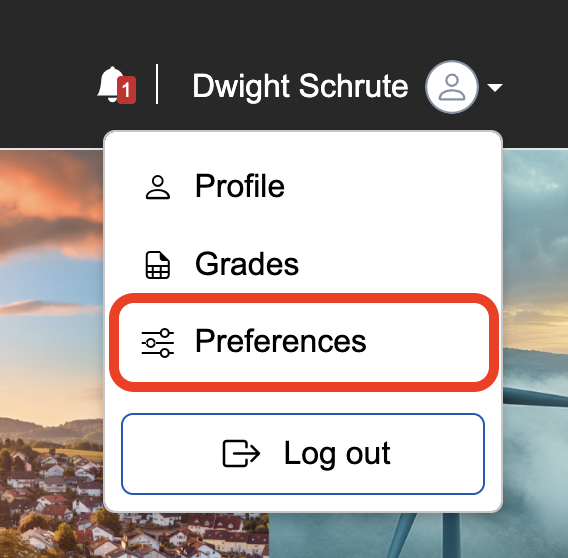
- Under the User account column, select Multi-factor authentication preferences.
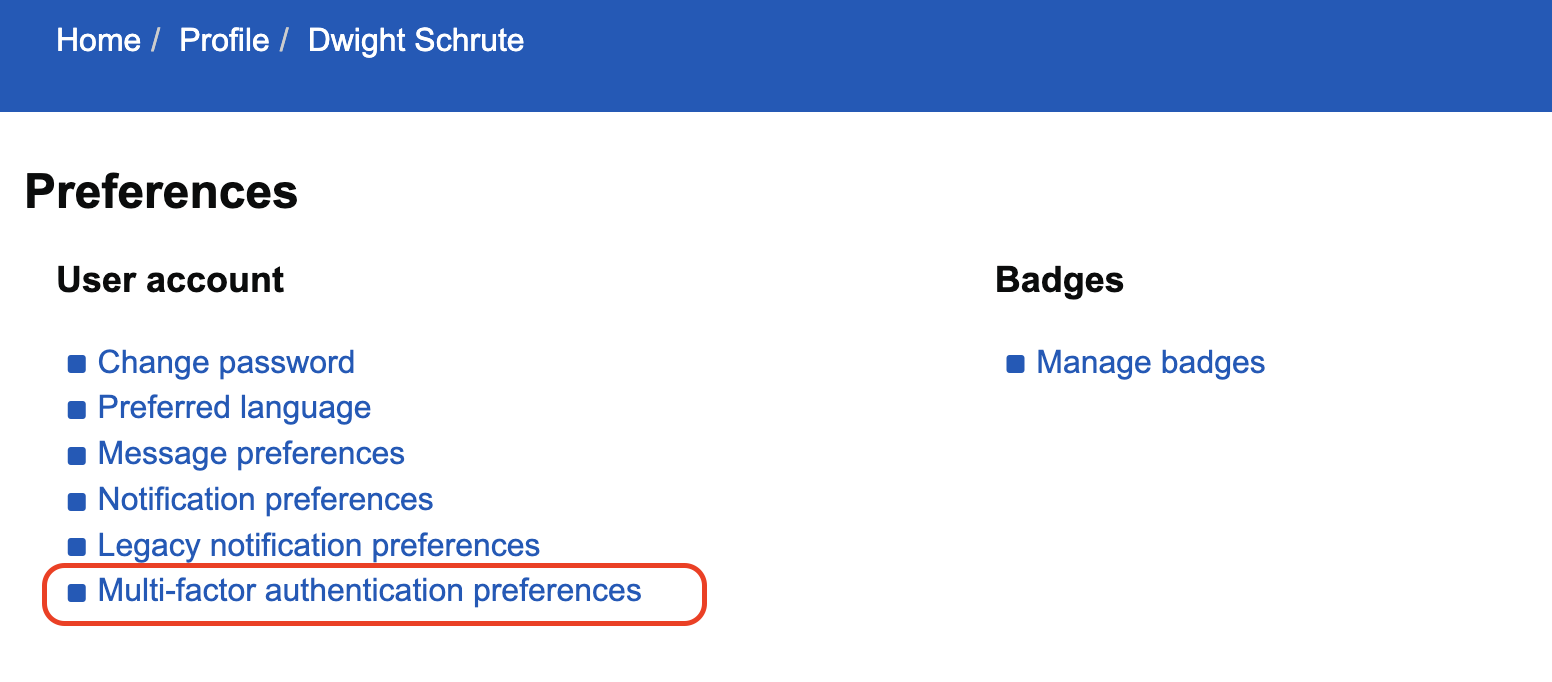
Note: This option will only be visible on your Preferences page if MFA is required for your role, as determined by site administrators. If you cannot see this option, it means MFA is not yet required for your account.
Step 2: Setup the app
- Click the Setup App button on your screen.
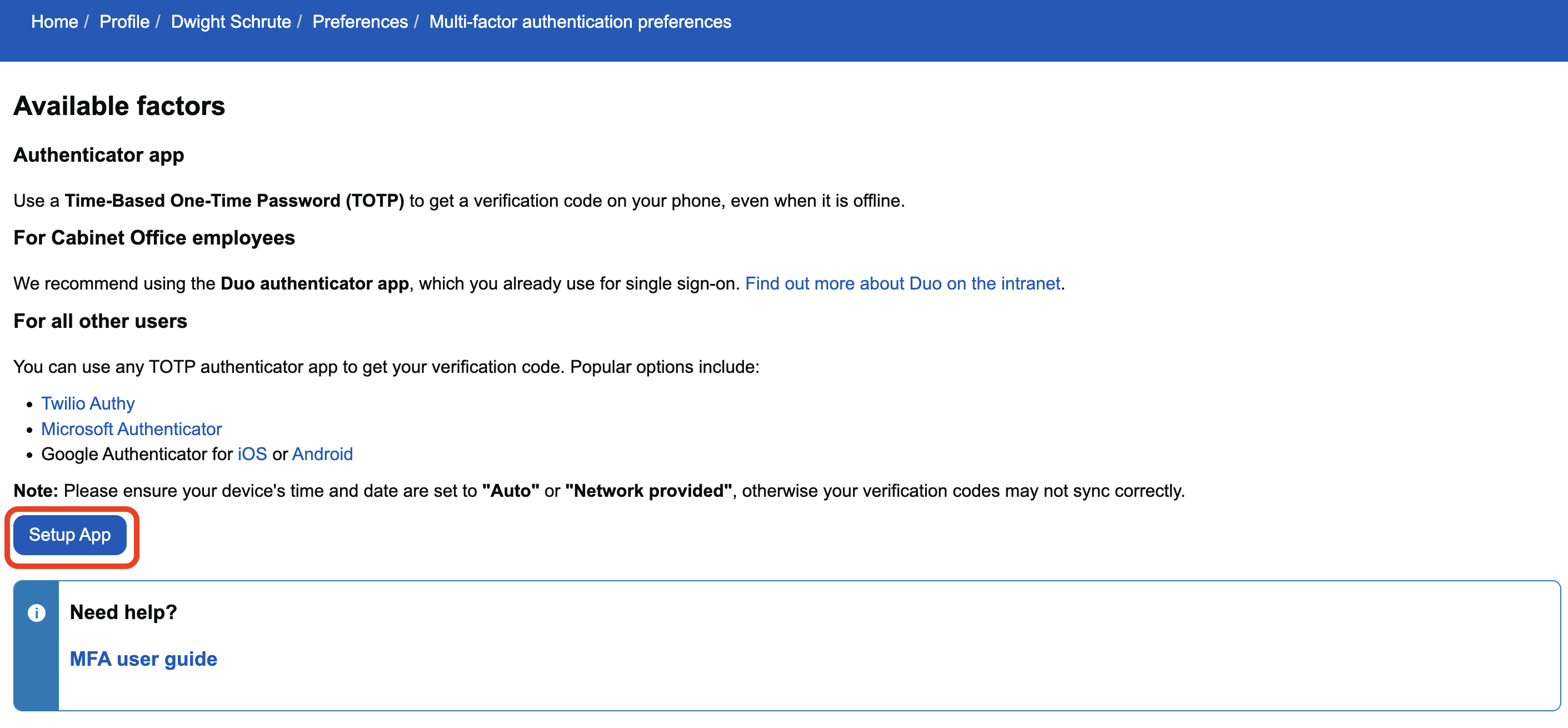
- Enter a name for your device in the Device label field. This can be anything that helps you easily identify the device (for example, "Work phone" or "Personal iPhone").

- Open the Duo app on your mobile device and tap Add.
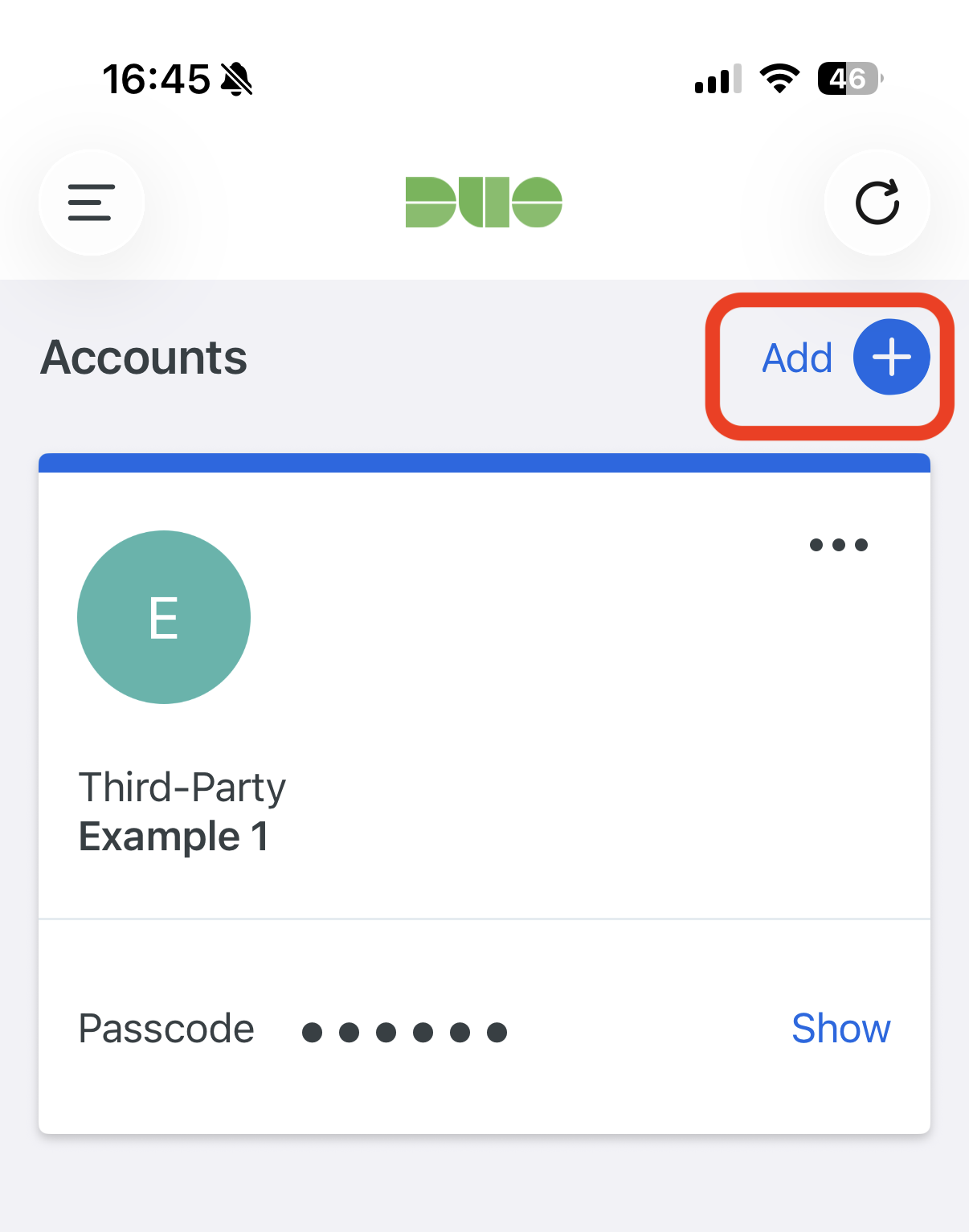
- Under Add account, select Use QR code.
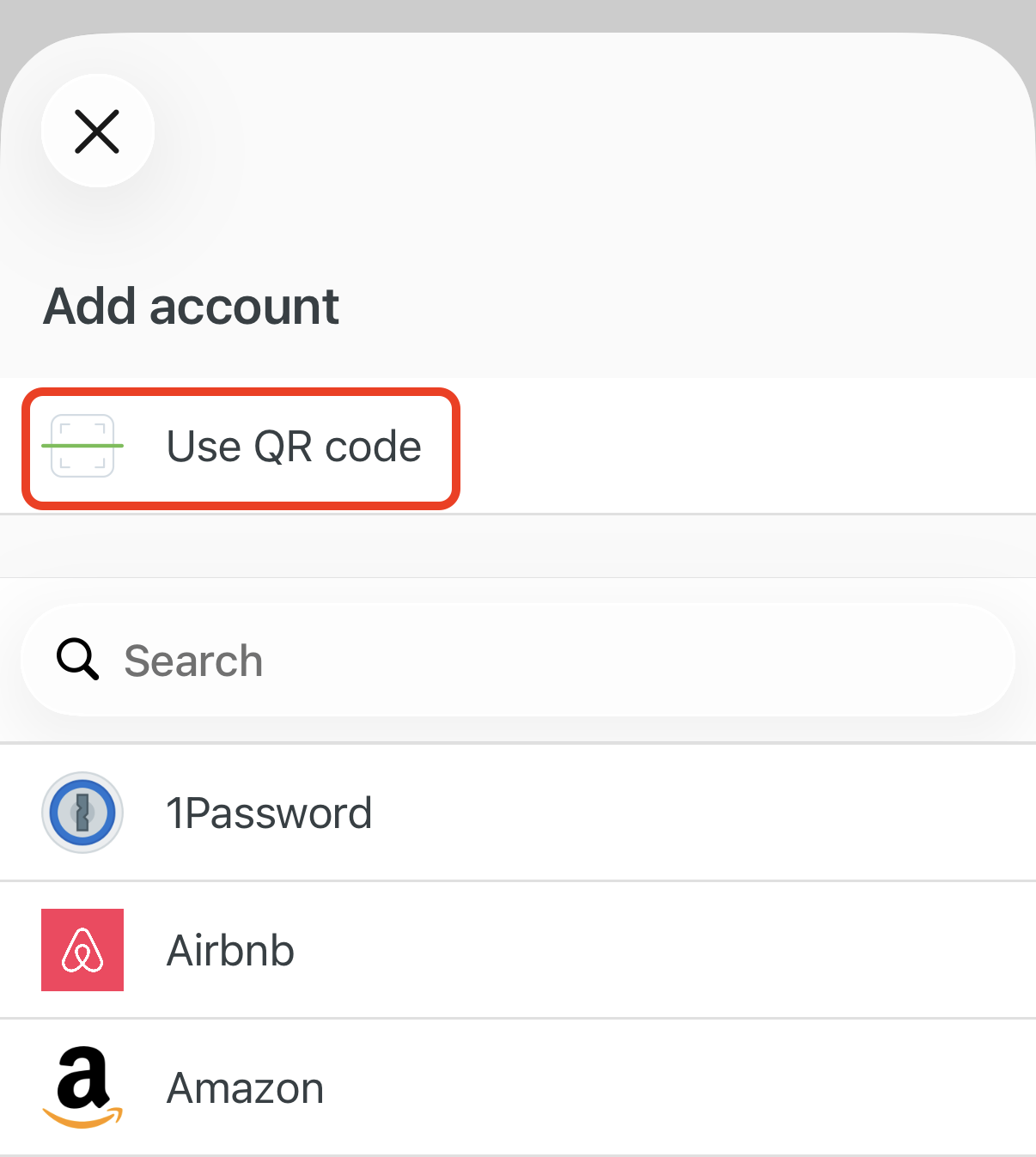
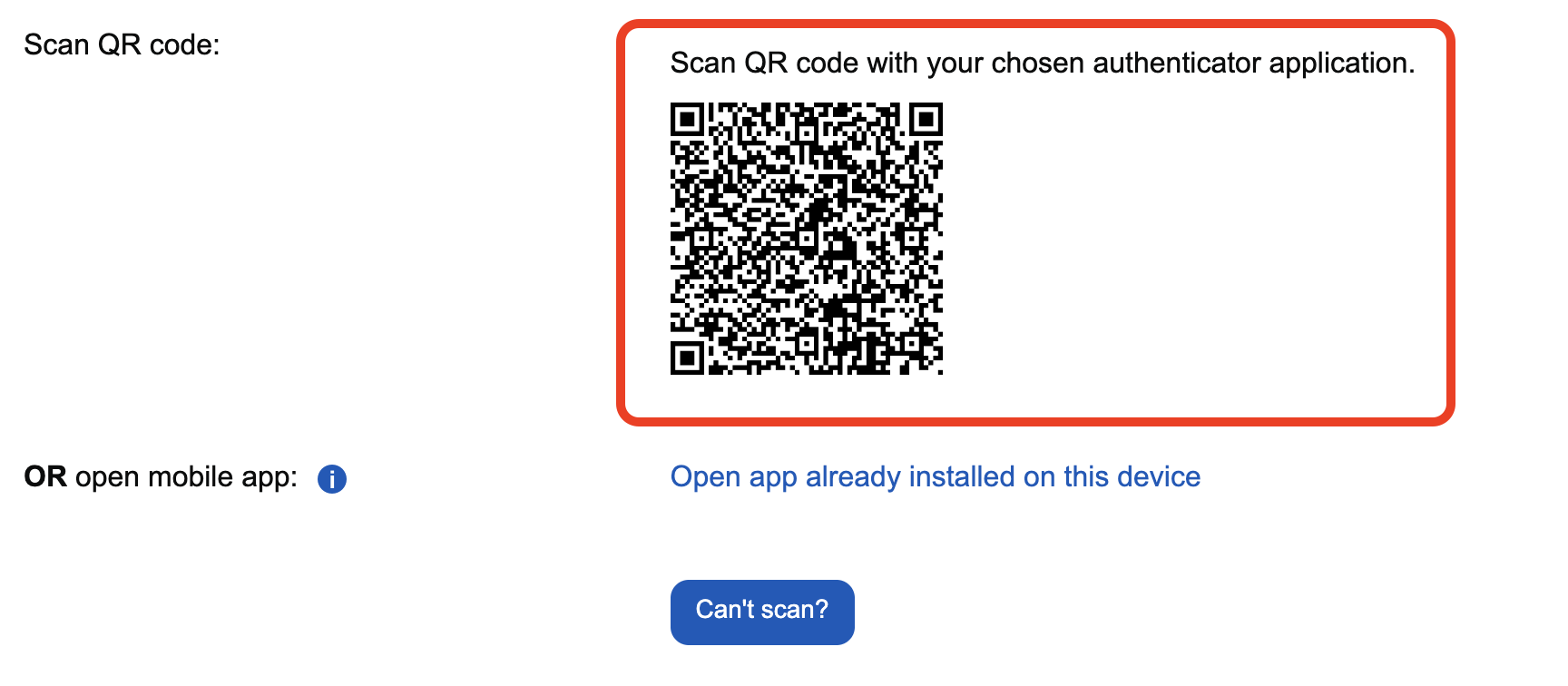
- This will open your phone's camera. Point your camera at the QR code displayed on the GCC setup page on your computer screen.
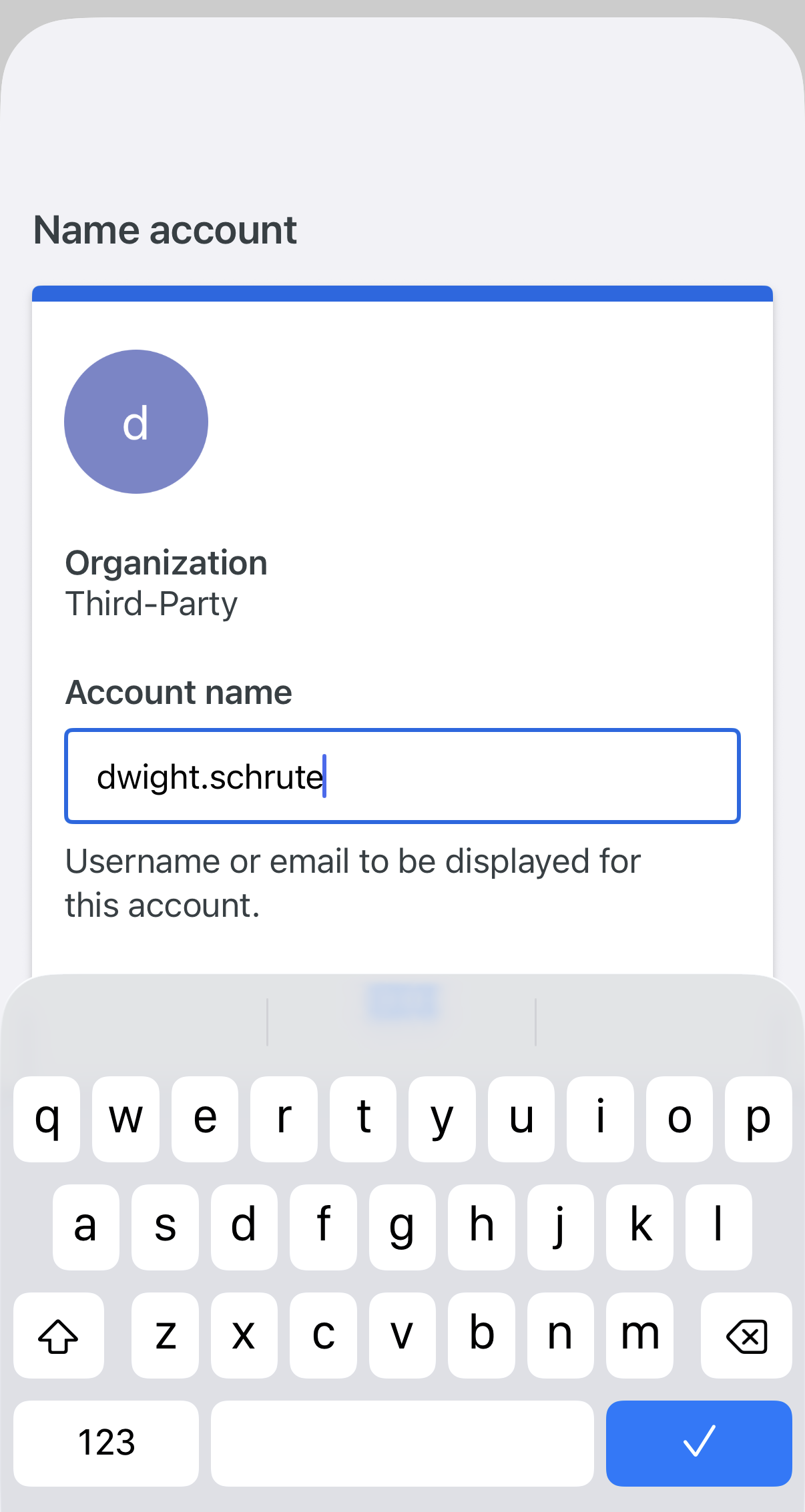
- Once scanned, the app should automatically populate the Account name field with your GCC username. Tap to confirm.
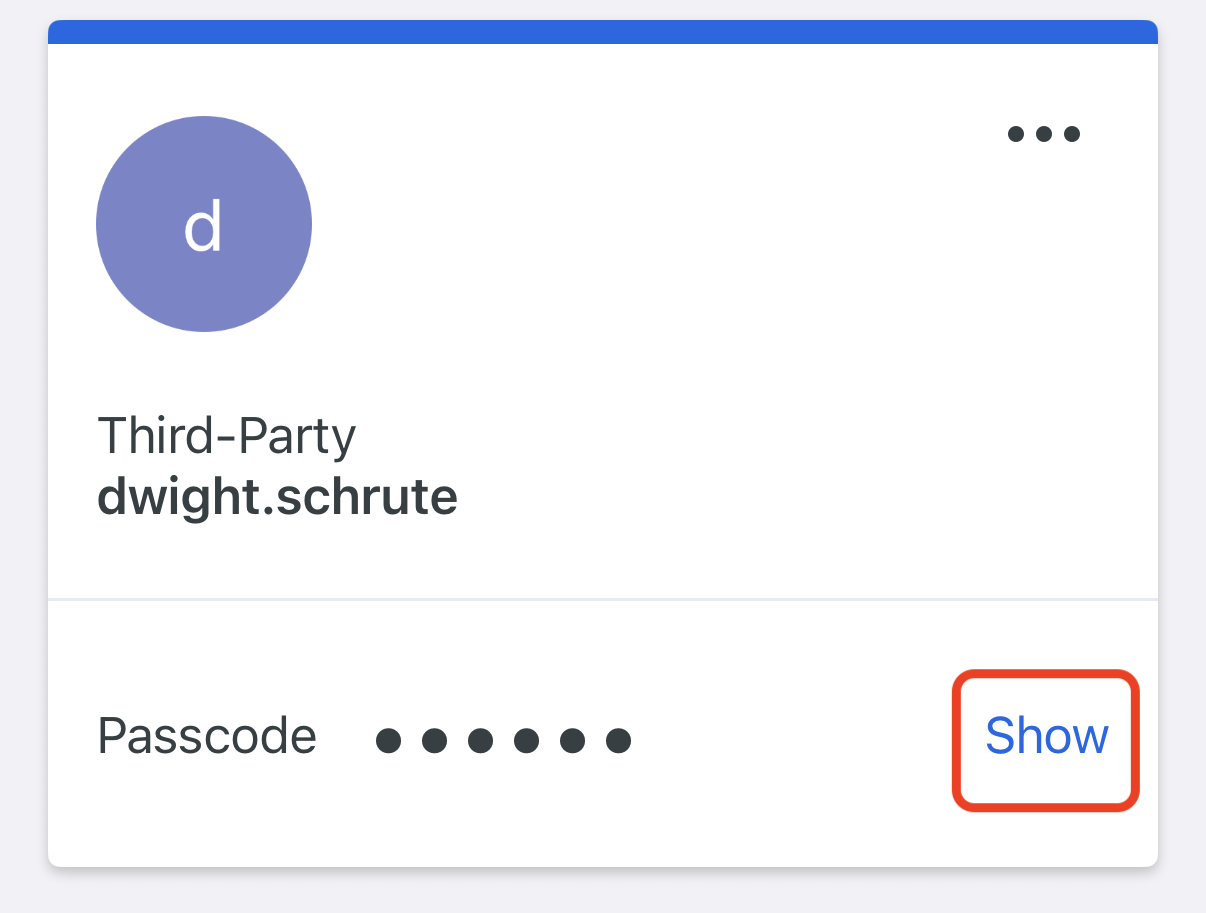
- Your GCC account will now appear on the Duo app homepage. The passcode is hidden by default; tap Show to reveal your 6-digit code.
- Return to the GCC setup page on your computer, enter this 6-digit code into the Enter verification code for confirmation field, and click Save changes.
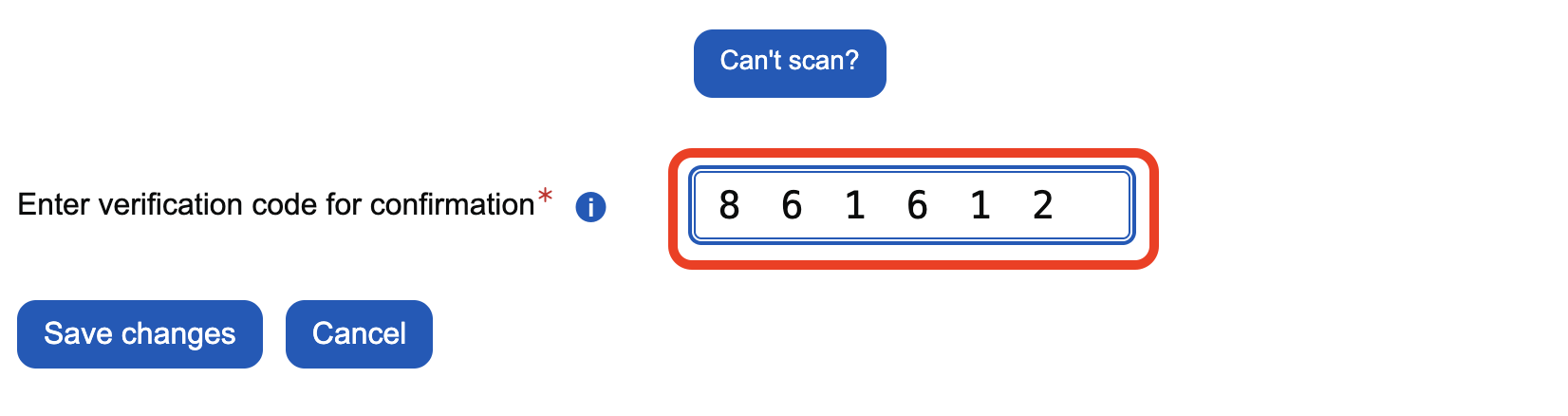
- You will be redirected back to the Preferences page, where a confirmation message will verify that the device has been added. You will now see this device listed in your Active factors table.
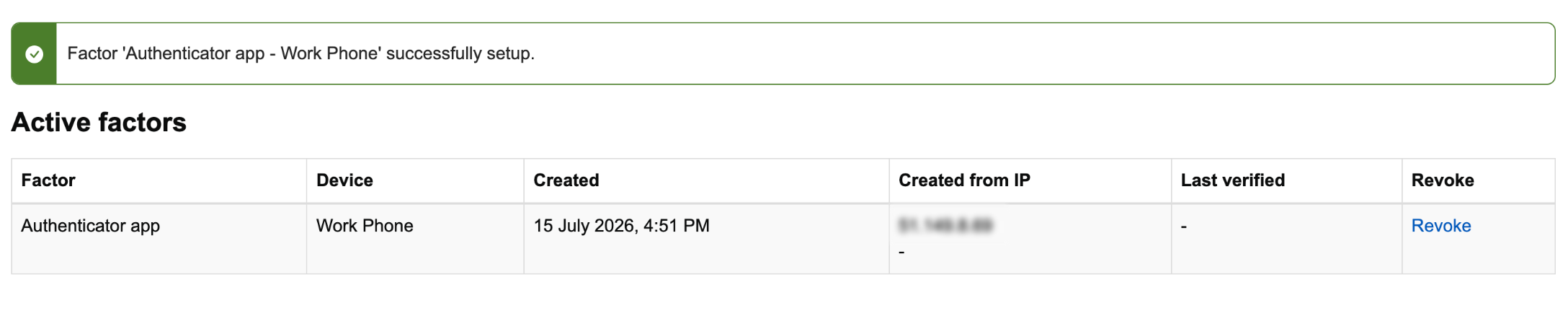
Setup Complete!
Your authenticator app is now set up! The next time you log in to the GCC, you will be prompted to enter a verification code from your app to complete your sign-in.
Unlike when verifying your identity for Cabinet Office IT systems, you will not receive a Duo push notification or an approval prompt on your device when logging in to the GCC.

Instead, you will need to manually open the Duo app, tap Show to reveal your 6-digit verification code, and type it into the GCC login screen.
Was this article helpful?
That’s Great!
Thank you for your feedback
Sorry! We couldn't be helpful
Thank you for your feedback
Feedback sent
We appreciate your effort and will try to fix the article